
F5 BIG-IQ Quick Setup > BIG-IQ 6.1 Centralized Management Quick Setup Guide > Module 1: BIG-IQ Instance Provisioning Source | Edit on
Provision BIG-IQ (VMware)
Description:
In this lab, we will deploy both BIG-IQ CM and DCD in VMware ESXi. Refer to below AskF5 link for official documentation.
Step 1: VMware ESXi Requirements
The vSphere virtual machine guest environment for the BIG-IQ Virtual Edition (VE), at minimum, must include:
4 virtual CPUs
16 GB RAM
- Important: When you provision the amount of RAM allocated to the virtual machine, it must match the amount of reserved RAM.
1 VMXNET3 virtual network adapter
1 virtual network adapter
At least 128GB disk
Step 2: Launch Instance
Follow below steps to deploy 2 BIG-IQ CM devices. You can repeat these same steps to deploy your BIG-IQ DCD device(s).
Important
DCD is required to use analytics, application dashboard, and other visualization features.
Download the BIG-IQ Centralized Manager ova file from downloads.f5.com

Note
Use the LARGE (500GB) footprint image for your BIG-IQ DCD devices.

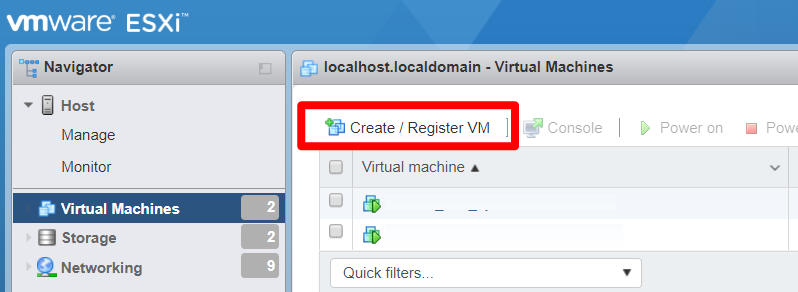
From the ESXi Host Client, click Create / Register VM
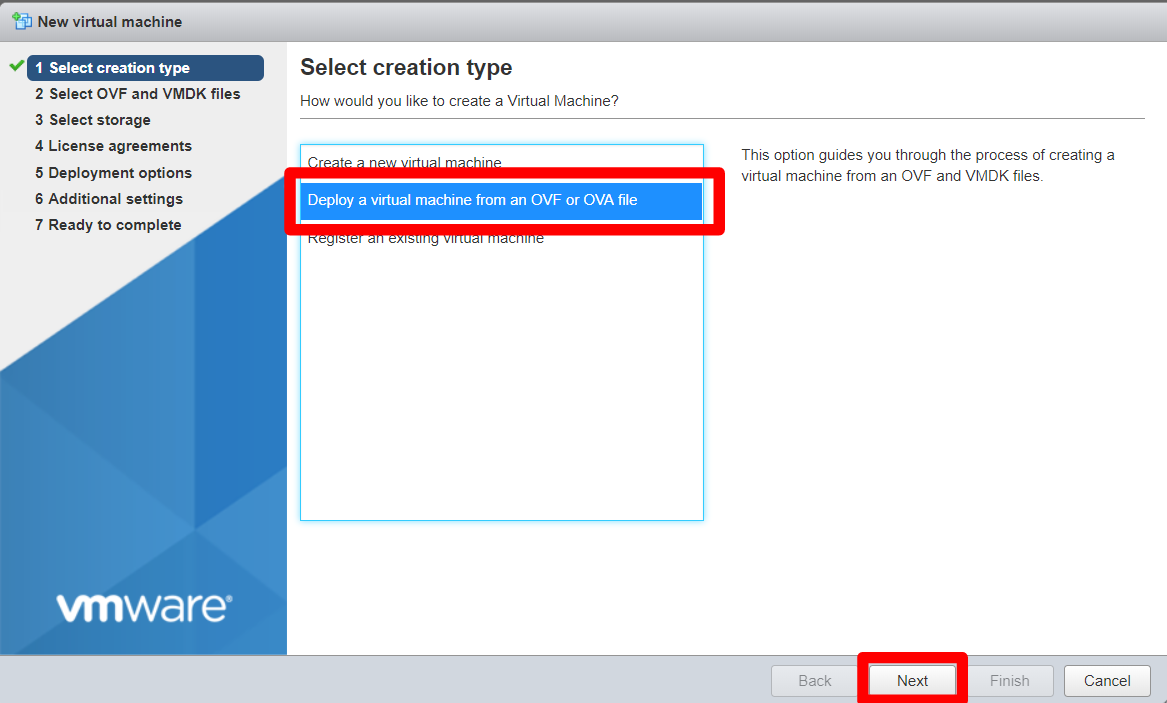
Select Deploy a virtual machine from an OVF or OVA file, click Next
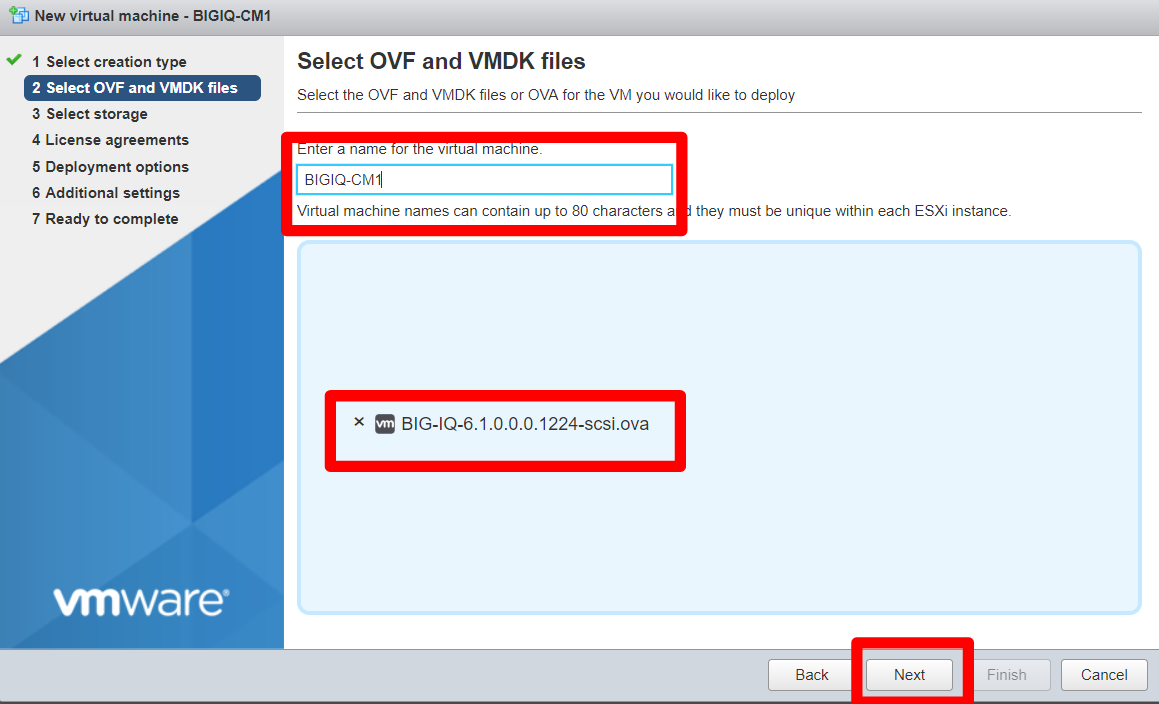
Next, drag and drop the ova file you downloaded earlier, enter in a name for the instance and click Next
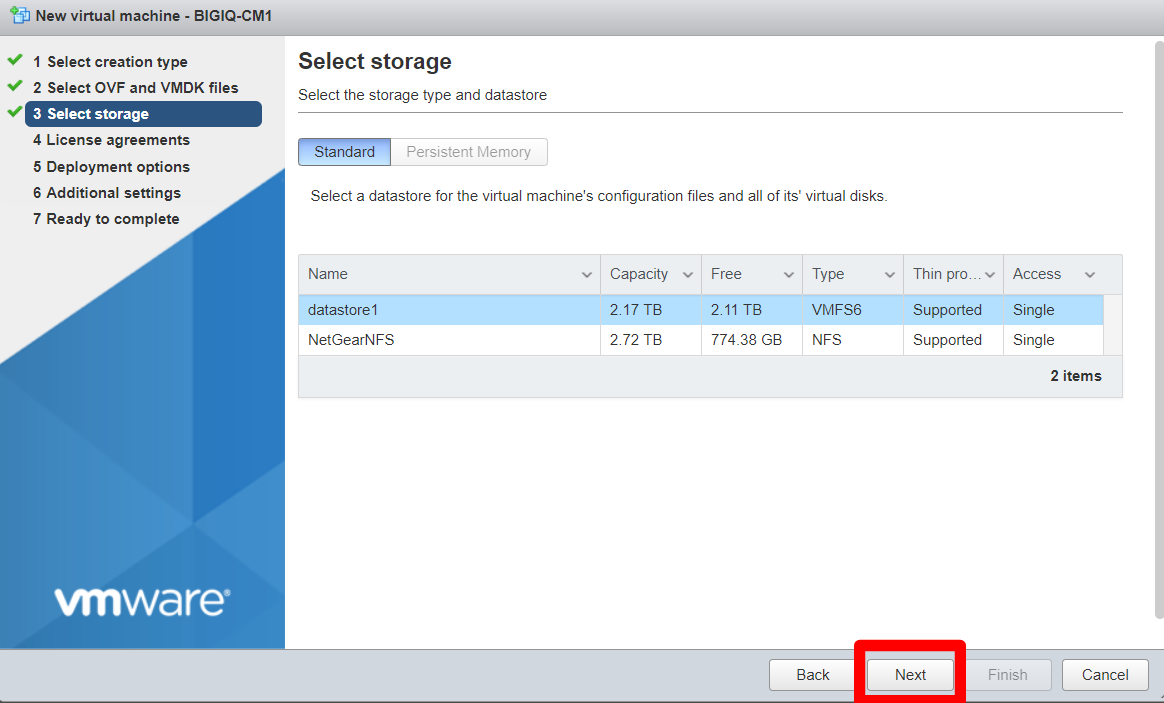
Select your desired storage location and click Next
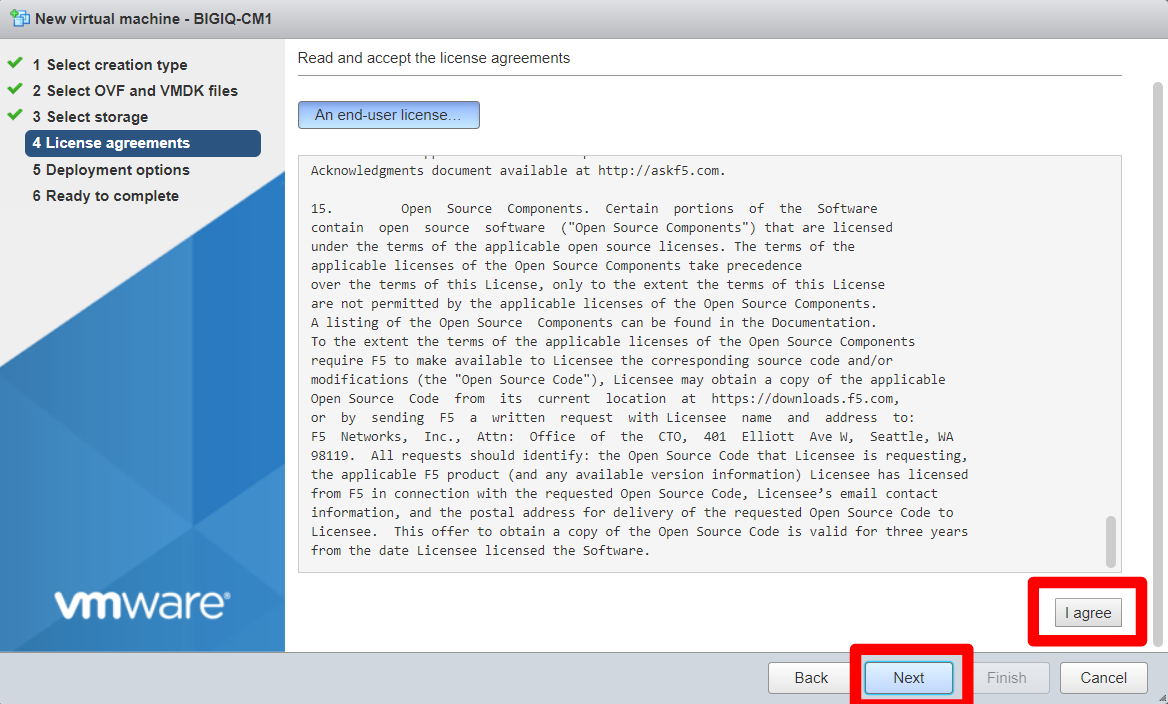
Confirm the EULA by clicking I agree and then click Next
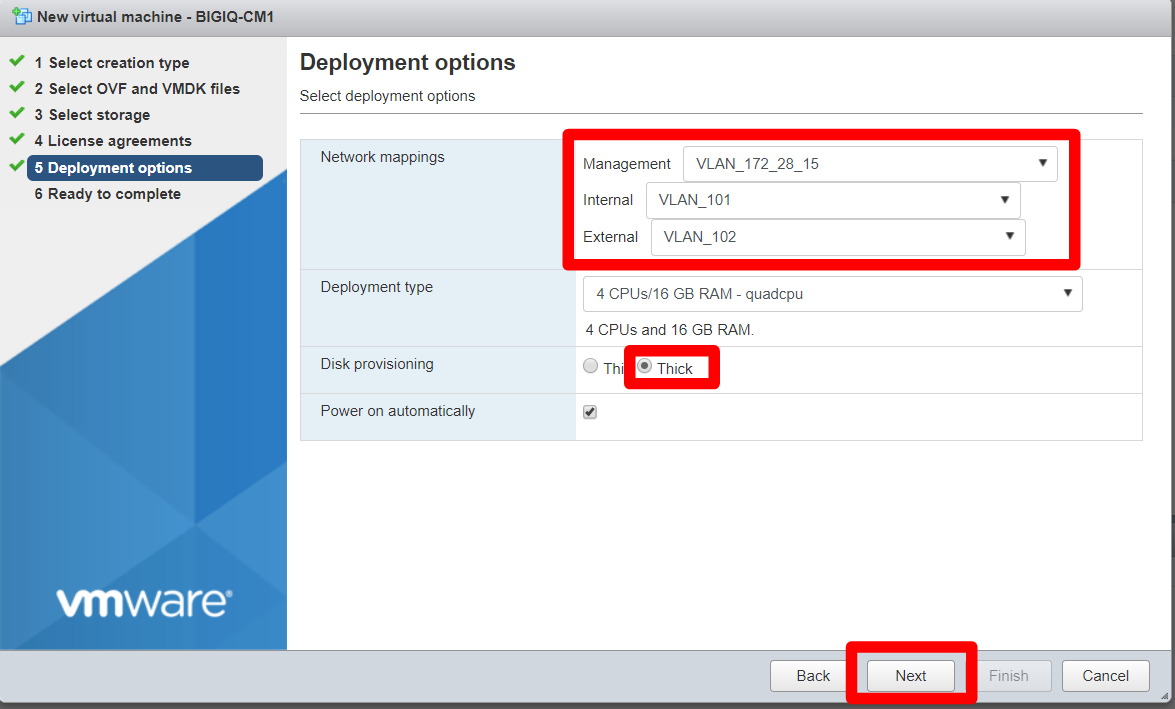
Select your management and Internal networks (External is optional), select Thick provisioning, then click Next
Note
In this lab we will use a separate Internal network for communication with the DCD
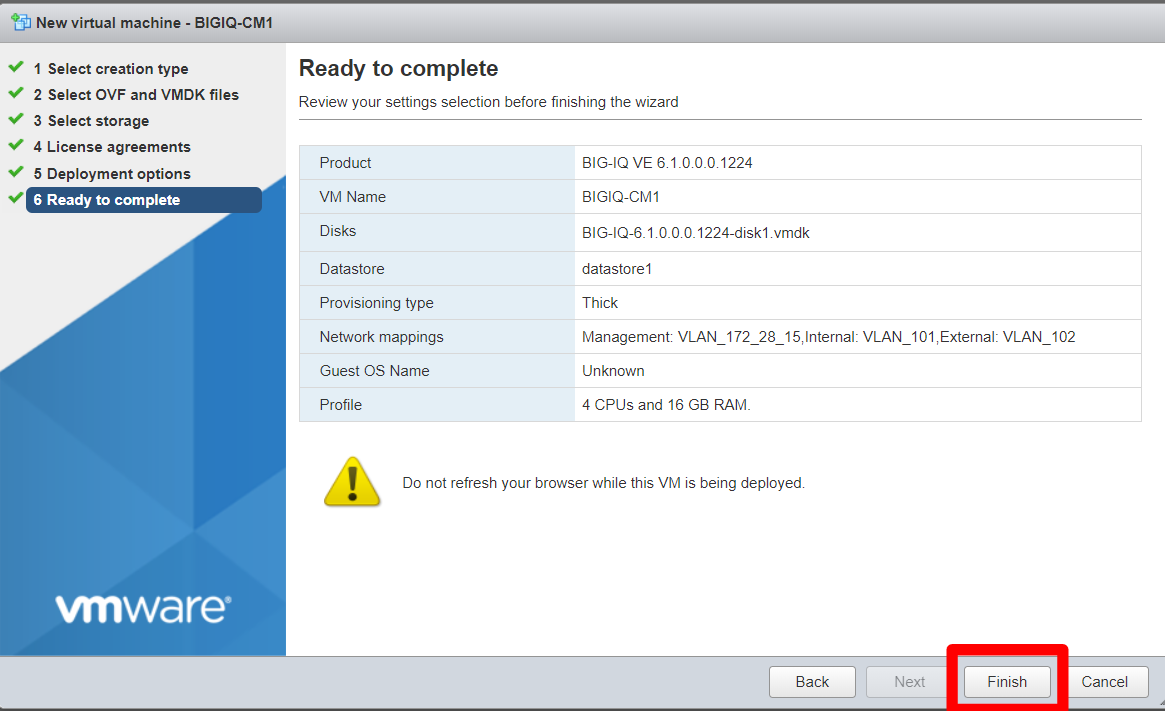
Confirm your settings then click Finish
When provisioning is complete, you will see BIG-IQ appear in the list of virtual machines

After BIG-IQ boots, click on the instance, click Console and choose a method to open the console
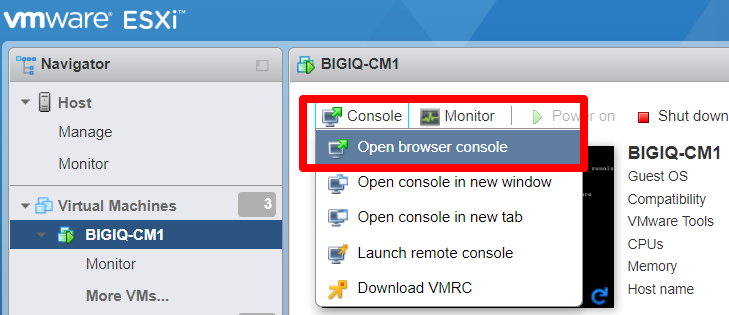
Log in using the root/default credentials and type in
configto configure the management ip.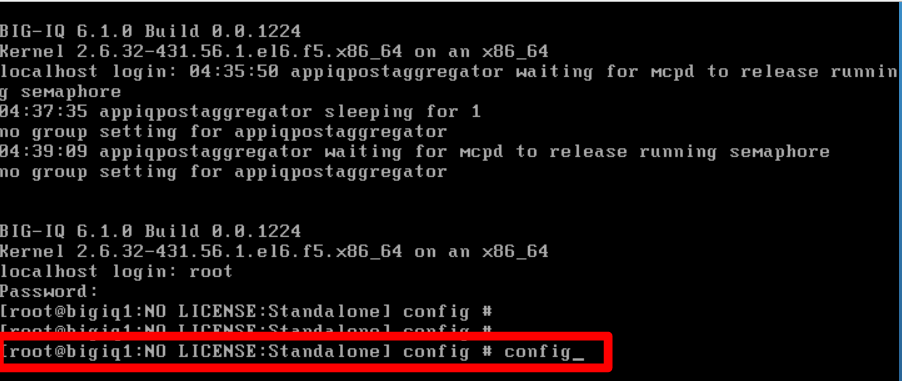
Access the management IP over HTTPS and log in using the default credentials (admin/admin).